Assign users/groups to the Microsoft RDP (MFA) app
You must assign the Microsoft RDP (MFA) app to all users who log in to machines that have the Credential Provider installed. By default, the App Sign-On policy for this app prompts for MFA every login.
- Sign in to your Okta tenant as an administrator.
- Click the app name.
-
In the Microsoft RDP (MFA) app in Okta, select the Sign On tab. In the Settings section, select Edit and choose the Application username format to assign to users of this app. The example uses Okta username, but you select any available option.
Note:When the end user signs in, the application user format must match exactly.
Best practice: Okta recommends using a username prefix, similar to how Windows uses the SAMAccountName for login.
-
Select the Assignments tab and assign the app to users or groups. After selecting Assign, enter the username. For more information on assigning apps, see Assign app integrations.
Note:The username that you enter must match the format you selected in the preceding step. Suppose a user's full UPN is in the format name@yourorg.com. If you're using the AD SAM account name as the Application username format, enter only the name portion of the UPN for the username. The AD SAM account name includes the @yourorg.com portion of the UPN.
-
Navigate to the Sign on tab to configure sign on rules specific to this app.
- On the Sign On tab, scroll to the Sign On Policy section.
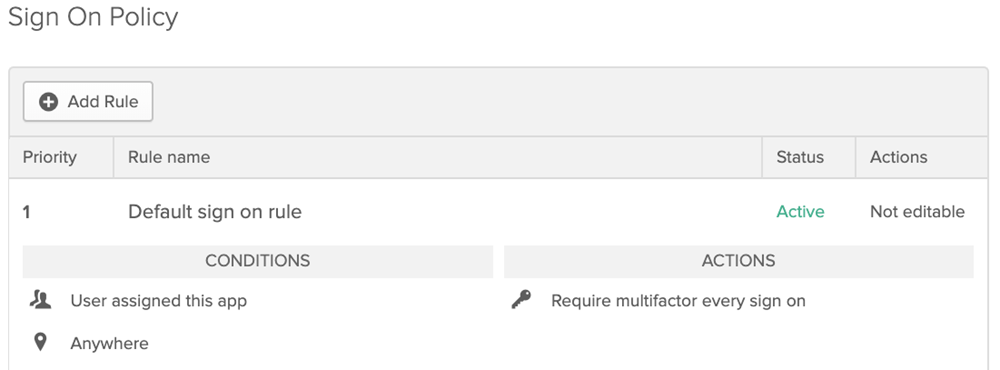
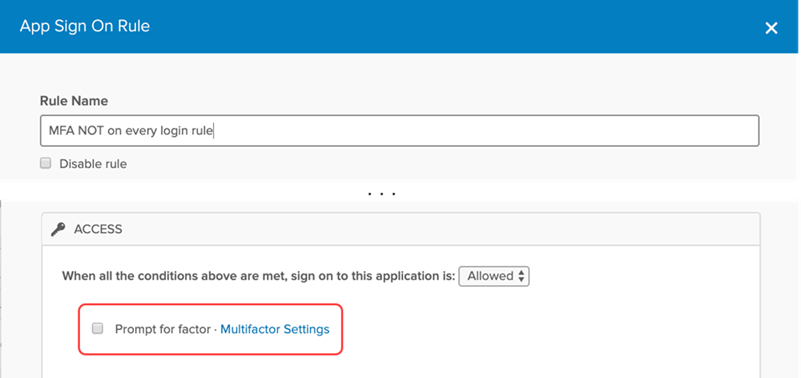
- The App Sign-On policy for this app prompts for MFA for every login. Create another on rule if you don't want to prompt some or all of your users for MFA. Assign users to the new rule and clear the Prompt for factor checkbox.
 Note:
Note:Okta sign on policy doesn't apply to Microsoft RDP (MFA). Okta only evaluates the app sign on policy defined in this step.
- Click Done when finished. Your system configuration is complete.