Chrome device permissions
Google has updated how the Chrome browser makes requests to devices on your local network. This change impacts Okta FastPass sign-in attempts using Chrome or Chromium-based browsers.
The browser opens a prompt that asks for permission to Access other apps and services on this device:
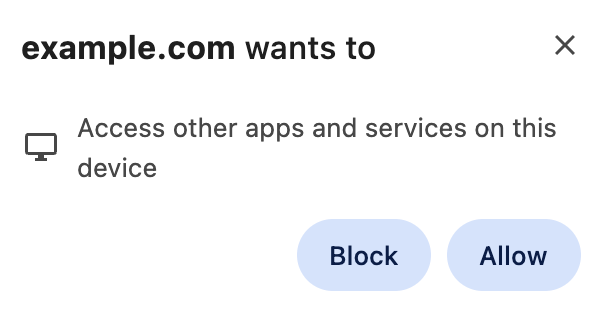
For Chrome release 144 and earlier, this prompt asked for permission to Look for and connect to any device on your local network.
Okta only connects to a server on the same device. It doesn't look for or connect to other devices on your local network.
When this prompt appears, select Allow so Okta FastPass can function properly.
Remediation for blocked permission on Chrome
If you previously blocked the prompt, follow these steps to change the settings in your Chrome browser:
-
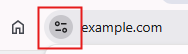
In the address bar, click the Page Actions menu icon next to the URL.
-
Activate the Apps on device toggle to allow the connection.
For Chrome release 144 or earlier, this toggle was labeled Local network access.
If you don't see the Apps on device setting in your Page Actions menu, you can go into your Chrome browser settings:
-
Enter
chrome://settings/privacyin the Chrome address bar. -
Go to Site settings. Click the site for the Okta-protected app you want to access.
You may need to click View permissions and data stored across sites if the site isn't listed in the Recent Activity section.
-
Change the Apps on device setting to Allow.
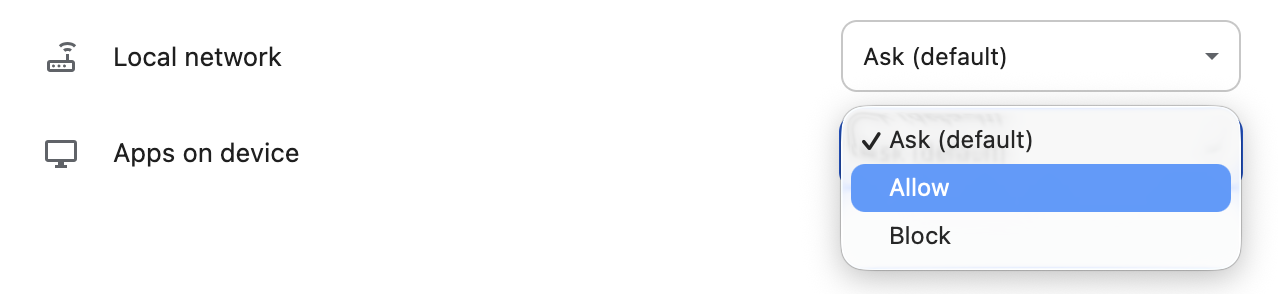
For Chrome release 144 or earlier, this setting was called Local network access.
-
Reload your page.
See New permission prompt for Local Network Access.
Remediation for blocked permissions on Microsoft Edge
For Chromium-based browsers, such as Microsoft Edge, you can manage the permissions in your browser settings.
-
Open Microsoft Edge and go to Settings.
-
Select .
-
You can use the search bar to find the domain that you want to allow or choose it from the provided list of sites.
-
Click the arrow to open the site permissions.
-
Scroll down and change the Sites can ask to connect to any device on your local network setting to Allow.
-
Reload your page.
See Control a website's access to the local network in Microsoft Edge.