Test Oracle PeopleSoft application
Testing a Oracle PeopleSoft application involves validating round trips using both SP and IDP tests.
Topics
- Configure application - Configure the application for either header simulation testing.
- Configure Access Gateway for debug and monitoring - Optionally, configure Access Gateway for debug display and monitoring of generated debug statements.
- Completed application testing - Perform normal application testing using production URLs.
- Disable Debug - Disable debug after testing.
Configure application debug
To enable debug for application testing:
- Navigate to the Access Gateway Admin UI console
- From the Topology tab or the Applications tab, open the application.
- Select the Settings pane.
- Expand the Advanced sub-tab.
- Set the Debug toggle to Enable.
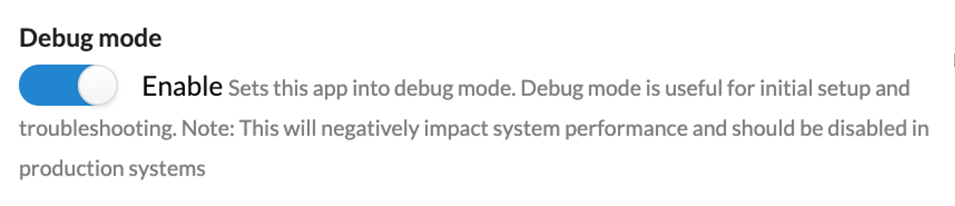
- Click Done.
Note:
When debugging applications: Consider testing attributes with static known good values. For example, change dynamic IDP based fields to static with known good values. When debugging policy based applications: Test with no policy or open policy first.
Configure Access Gateway for debug and monitoring
You can configure Access Gateway Management console to generate a running display of all system log messages.
- Open a terminal and use Secure Shell (SSH) to connect to the Access Gateway Management console.
- Enter 4 - Monitoring.
- Enter 2 - Enable Debug.
- Enter 1 - Monitor logs. This starts the running display of all log messages.
- Return to the Access Gateway Admin UI console console. You can test your app and examine the results in the running logs.
- Enter Ctrl-c to exit the log display.
See Monitor for details about monitoring, including a list of available commands.
The debug logging level rapidly generates log messages. Always disable debug logging when you've finished examining logging. Otherwise, you may run out of disk space.
Test
- Click the Applications tab.
- On the row that contains the app, click .
- Click to run the tests.
- Repeat testing using each specialized policy URI.
- Disable debugging when you're finished.
Disable debug
Display debug statements at the command line
- Go to the Access Gateway Management console.
- Enter [Ctrl]-[c] to exit the log display.
- Enter 3 - Disable debug.
- Exit the command-line console.
App debug is enabled
- Go to the Access Gateway Admin UI console.
- Go to the app you're testing.
- Expand the Setting tab.
- Expand the Essentials tab.
- Return the Protected Web Resource field back to its original value.
- Expand the Advanced tab.
- Set the Debug toggle to Disable.
- Save your changes.