Integrate Okta Device Trust with Omnissa Workspace ONE for iOS and Android devices
This is an Early Access feature. To enable it, in the Okta Admin Console, go to , and then turn on Workspace1 Device Trust for your mobile platform(s).
This integration is based primarily on SAML trust connections. It combines the power of Okta's Contextual Access Management policy framework with device signals from Omnissa Workspace ONE to deliver a secure and seamless end-user experience. Allowing Workspace ONE to add the Device Context to the SAML Assertion lets enterprises leverage Okta's policy framework to require users to enroll their unmanaged device or satisfy an MFA challenge.
You can also configure this integration to provide end users a streamlined device enrollment experience, leverage Okta's extensible Multi Factor Authentication to applications in Workspace ONE, and provide a consistent and familiar login experience for users and administrators.
This guide provides step-by-step instructions to configure and test use cases supported by Okta and Workspace ONE. To integrate Okta with Workspace ONE, you integrate Workspace ONE Access with Okta. Workspace ONE Access is the identity component of Workspace ONE.
Intended audience
This information is written for experienced administrators who are familiar with Okta and Workspace ONE Access.
Use Cases
The main use cases supported by the Okta and Workspace ONE integration include:
- Enforce Device Trust and SSO for mobile devices with Okta and Omnissa Workspace ONE
- Configure streamlined Device Enrollment and Workspace ONE login using Okta
1. Enforce Device Trust and SSO for mobile devices with Okta and Omnissa Workspace ONE
Enforce Device Trust and SSO for mobile devices with Okta and Omnissa Workspace ONE
Integrating Okta with Workspace ONE allows admins to establish device trust by evaluating device posture, such as whether the device is managed, before permitting end users to access sensitive applications. For iOS and Android devices, device posture policies are configured in Okta and evaluated anytime a user logs into a protected application.
This use case also establishes Okta as a trusted identity provider to Workspace ONE, allowing end users to sign in to the Workspace ONE app, Workspace ONE Intelligent Hub app, and web portal using Okta app sign-in policies.
Authentication flow for iOS and Android devices
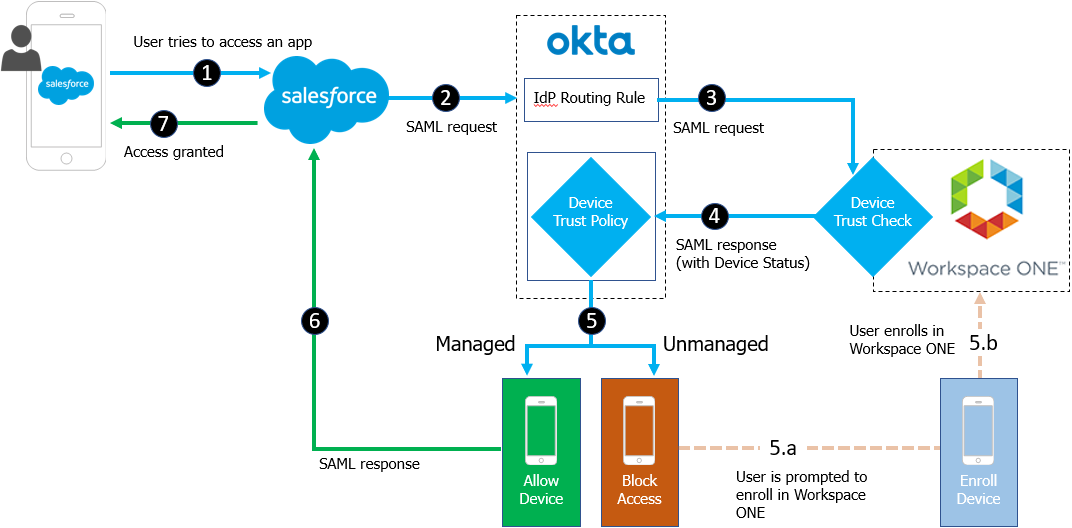
A device trust flow for iOS and Android devices using the Salesforce app would follow this sequence:
- End user attempts to access the Salesforce tenant.
- Salesforce redirects to Okta as the configured identity provider.
- Okta processes the incoming request and routes the client to the Workspace ONE identity provider based on configured routing rules.
- Workspace ONE challenges the user for authentication using Mobile SSO for iOS or Mobile SSO for Android.
- Workspace ONE redirects back to Okta with device trust status.
- Okta issues the SAML assertion for Salesforce if the device trust rule is satisfied based on the SAML assertion response received from Workspace ONE.
To configure this use case:
2. Configure streamlined Device Enrollment and Workspace ONE login using Okta
Configure streamlined Device Enrollment and Workspace ONE login using Okta
You can configure this use case to provide end users a streamlined device enrollment experience, leverage Okta's extensible Multi Factor Authentication to applications in Workspace ONE, and provide a consistent and familiar login experience for users and administrators.
This configuration is configured in Workspace ONE Access, the identity component of Workspace ONE.
To configure this use case:
If you want to combine both use cases, first configure this use case and then configure Enforce Device Trust and SSO with Okta and Omnissa Workspace ONE.
Optional: You can allow end users to access apps from either the Okta dashboard or the Workspace ONE dashboard. Both experiences are fully supported. You can configure the Workspace ONE catalog to publish applications federated through Okta without the need to first import them into Workspace ONE Access.
For details, see Publish Okta apps to the Workspace ONE catalog
Requirements
Ensure that your environment meets the following requirements before you begin the Workspace ONEand Okta integration.
Components
Workspace ONE
- A Workspace ONE Access tenant with System Administrator role
- A Workspace ONE Unified Endpoint Management(UEM) tenant
- Workspace ONE Access Connector
-
Workspace ONE Access AirWatch Cloud Connector (ACC)
ACC is required only if you use Workspace ONE UEM.
If your existing deployment syncs users to Workspace ONE Access from Workspace ONE UEM, the Workspace ONE Access connector is not required. For new deployments, using the Workspace ONE Access connector to sync users from Active Directory to Workspace ONE Access is recommended.
Okta
- An Okta org (tenant) with Super or Org Administrator role
- Device Trust for Workspace ONE enabled by Okta Support
- Identity Provider Routing Rules (IdP Discovery) enabled by Okta Support
Supported apps and devices
- Any iOS or Android SAML or WS-Fed cloud app
- Devices running Okta-supported versions of iOS and Android operating systems
Integrate Workspace ONE and Workspace ONE Access
Integrate your Workspace ONE UEM and Workspace ONE Access tenants and configure the mobile SSO authentication methods that you intend to use for device trust.
Notes
- Device Trust does not apply to apps accessed from Okta Mobile.
- Enroll devices in Workspace ONE for best end user experience – Your end users will have a better experience when accessing your corporate resources if their Android or iOS device is already enrolled in Workspace ONE UEM. Otherwise, end users with un-enrolled iOS and Android devices are guided through the Workspace ONE UEM enrollment process before they can access device trust-secured apps.
- Do not secure Workspace ONE with this Device Trust solution – Doing so will prevent new users from enrolling their device in Workspace ONE and accessing other device trust-secured apps.
- Timeout issue can cause an SSO error – End users signing in to device trust-secured apps from an untrusted iOS or Android device are prompted to enroll their device with Workspace ONE. (This is expected behavior.) But if the apps are native apps and Workspace ONE enrollment takes longer than 10 minutes, or if the end user waits longer than 10 minutes after enrollment before trying again to access the app, an SSO error occurs because the app session has timed out. Advise affected end users to try to access the app again.
-
Apps secured by Device Trust are shown as locked on the Okta End-User Dashboard. A lock icon is shown beside apps secured by Device Trust under these conditions:
- The end users accessed the dashboard in a desktop or mobile browser (not in Okta Mobile).
- Device Trust is enabled for the org.
- The device isn't trusted.
- The end user tried to access any Device Trust-secured app from their dashboard.