Add an Oracle Agile PLM app
Add an Oracle Agile PLM app using the Access Gateway Admin UI console.
Note:
This app uses header variables to exchange user information. You can use the Access Gateway sample header app. See Add a generic header app and Add a sample header app.
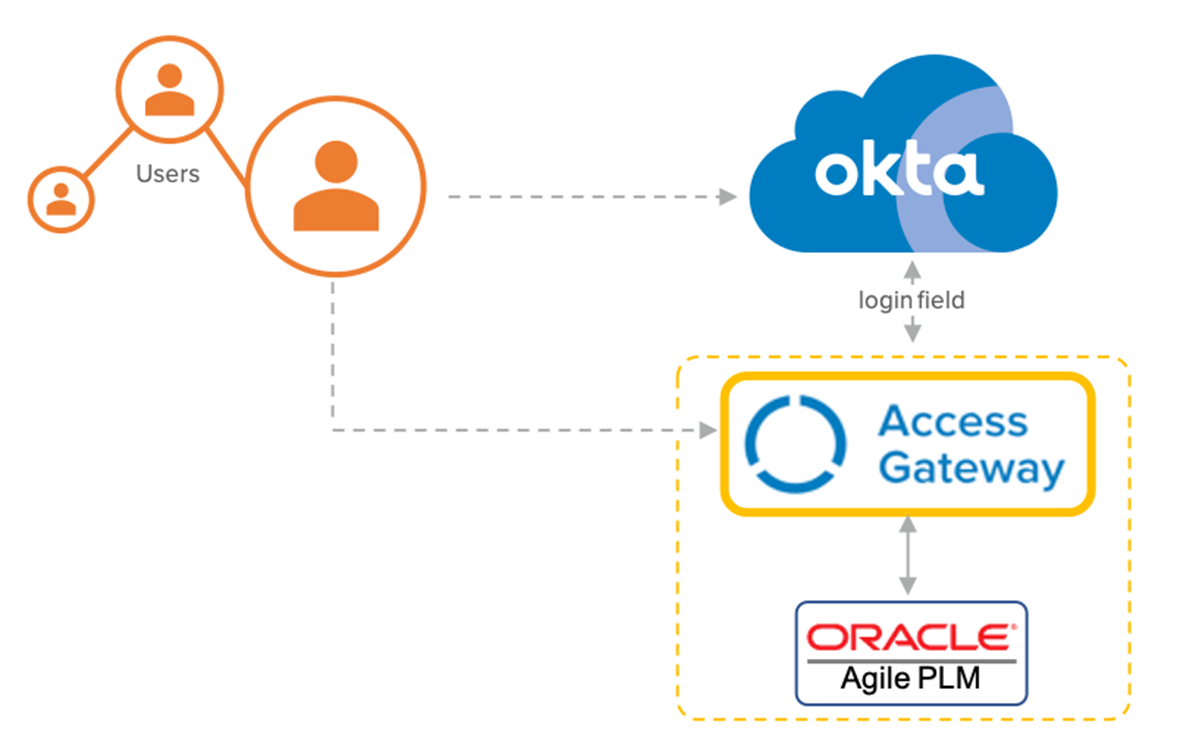
Architecture
Before you begin
- Verify that Access Gateway is installed and configured. See Manage Access Gateway deployment.
- Verify that Access Gateway uses your Okta org as an identity provider (IdP). See Configure an Identity Provider in Access Gateway.
- Verify that you have administrator rights on your Okta org and can create groups and assign apps.
- Verify that you have an external Oracle Agile PLM app that requires protection.
- Verify that the external app version is supported. Oracle Agile PLM version 9 and later are supported.
- Ensure that appropriate DNS entries for both the legacy app and the exposed new URL exist.
- Ensure that appropriate DNS entries for both the protected app and the external URL exist, as in this example:
Value Description https://agile-app.externalexample.comThe external or customer-facing app URL. https://agile-app.internalexample.comThe internal or protected app URL of the Oracle Agile PLM app.
Typical workflow
|
Task |
Description |
|---|---|
| Create a containing group |
Create an optional group that contains the users to assign to the app. |
| Create an app |
Create an Oracle Agile PLM app. |
| Assign a certificate |
Assign an optional certificate to the app. |
| Confirm attributes |
Confirm the required attributes and add any optional attributes to the app. |
| Test the app |
Test the app. |
| Troubleshoot |
Troubleshoot the integration. |