Netmotion Mobility - Add trusted root certificate
The NetMotion Mobility gateway requires a trusted root certificate. You must add the root certificate authority used to issue the server certificate Trusted Root CA certificate store of your client device.
Note:
These steps must be performed on the computer running the NetMotion Mobility VPN client.
Before you begin
Ensure that you have sufficient access rights to add a certificate as a trusted CA using the Microsoft Management Console.
To add a certificate to the Trusted root CA in Windows 10:
- On the computer running the NetMotion Mobility VPN client, open the Microsoft Management Console.
- From the file menu select Snap-in.
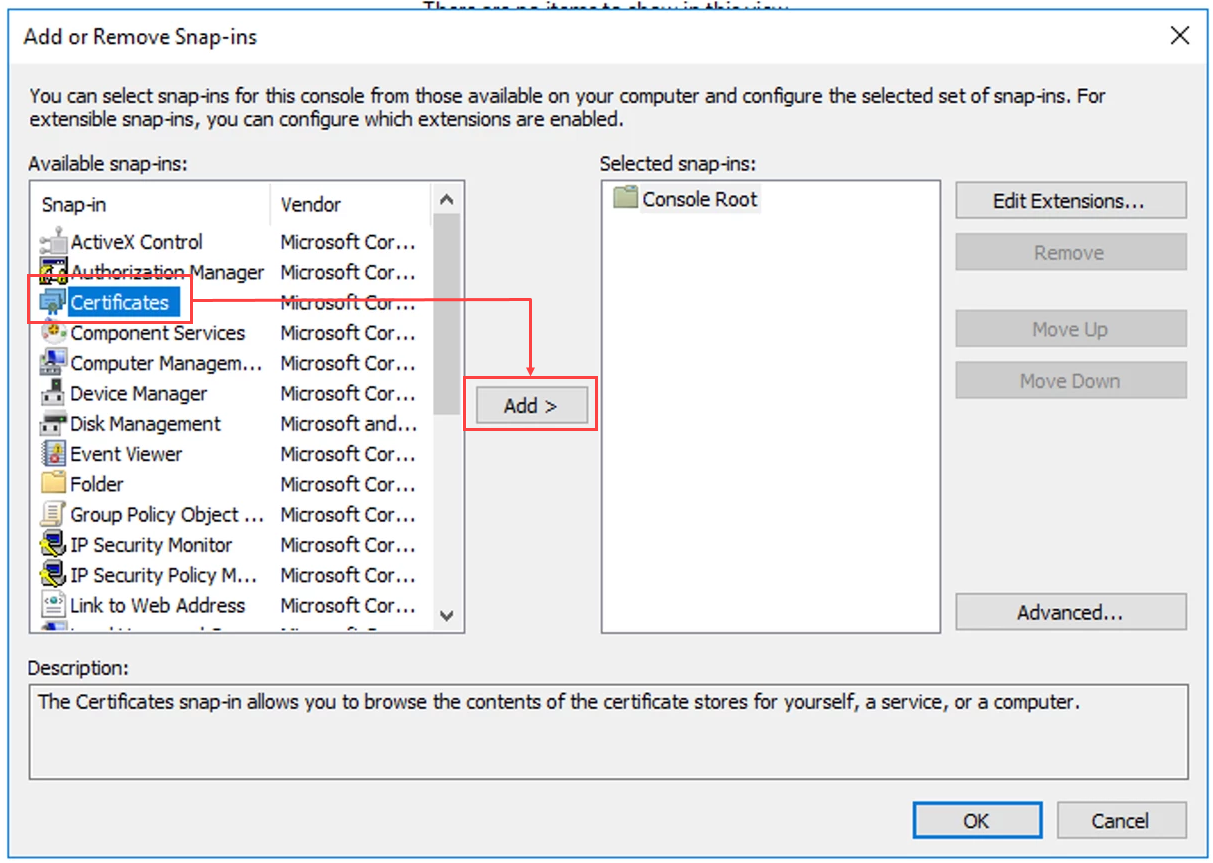
- In the Add/Remove Snap-in dialog, in the Available snap-ins section, select Certificates and click Add.
- In the Certificates snap-in dialog, select Computer account and click Next.
- In the Select Computer dialog, select Local computer and click Finish.
- Click OK.
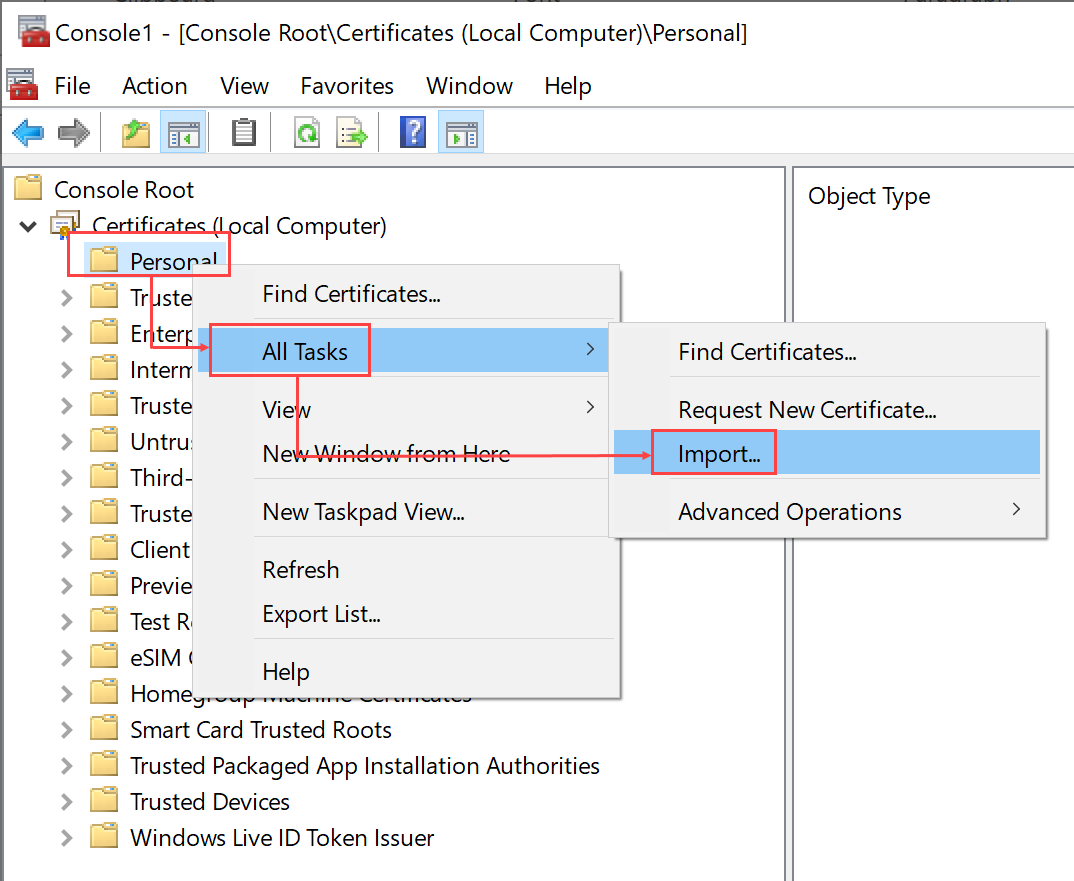
- Navigate to .Right click Personal and select The Certificate Import wizard starts.
- Click Next.
- Enter the fully qualified path or click Browse to navigate to the directory that contains the certificate.
- Select the certificate and click Next.
- Click Finish to import the certificate.
- From , select the certificate that you added and drag it to .
The new certificate has been successfully added as a trusted root certificate.