

Integrate MuleSoft Anypoint Platform with Okta
Configure the MuleSoft Anypoint Platform within Okta by gathering credentials and assigning users.
Before you begin
You have an admin role that grants permissions to manage users, groups, and OIDC apps. Also, you have permissions to provide IdP configuration details such as Client ID, Client Secret, and OIDC well-known endpoints.
Configure the app in Okta
-
In the Admin Console, go to .
- Click Browse App Catalog.
- Search for and select MuleSoft Anypoint Platform.
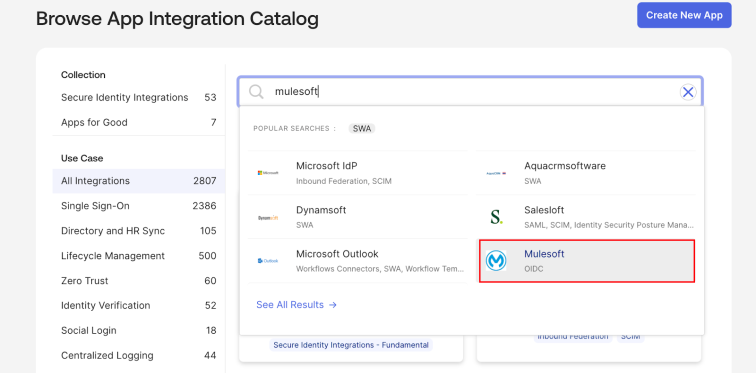
- Click Add Integration.
- On the General Settings tab, enter the Application label.
- Optional. Enter a Redirect URI.
- Click Done.
- On the Authentication tab, find the Client ID, Client Secret, and OpenID Provider metadata URL link.
- Copy and store your Client ID and Client Secret in a secure location.
- Find the OpenID Provider metadata URL at:
<issuer>/.well-known/openid-configuration -
Click the metadata URL and record the values for the following fields:
- Authorize URL
- Token URL
- User Info URL
- OpenID Connect issuer
Assign users to the integration
- Go to the Assignments tab.
- Click .
- Locate the user and click Assign.
- Click Save and Go Back.
- Click Done.
- Verify that the user appears in the Assignments tab.