Microsoft Entra ID integration
There are several tasks that you need to complete to integrate Identity Security Posture Management (ISPM) with your Microsoft Entra ID (formerly known as Azure Active Directory) tenant. You can use the app that you integrate to retrieve data from Microsoft Entra ID.
Copy your tenant name
- Sign in to the Microsoft Entra ID portal using an admin account.
- If you have more than one Microsoft Entra ID tenant, open your profile dropdown menu and click Switch directory to switch your portal session to the desired Microsoft Entra ID.
- In the left-hand navigation pane, select the Microsoft Entra ID service.
- On the Overview page of Microsoft Entra ID, the Primary domain field displays your tenant name.
- Copy the tenant name and store it somewhere securely.
Register the ISPM app
- In the Microsoft Entra ID portal, go to .
- Click + New registration. The Register an application page opens.
- Complete the following fields:
- Name: Enter an app name. For example, Identity Security Posture Management app.
- Supported account types: Select Accounts in this organizational directory only (Default Directory only - Single tenant).
- Redirect URI: Select Web.
- Click Register.
Copy the application ID
- Go to the Overview page.
- Copy the Application (client) ID value and store it somewhere securely.

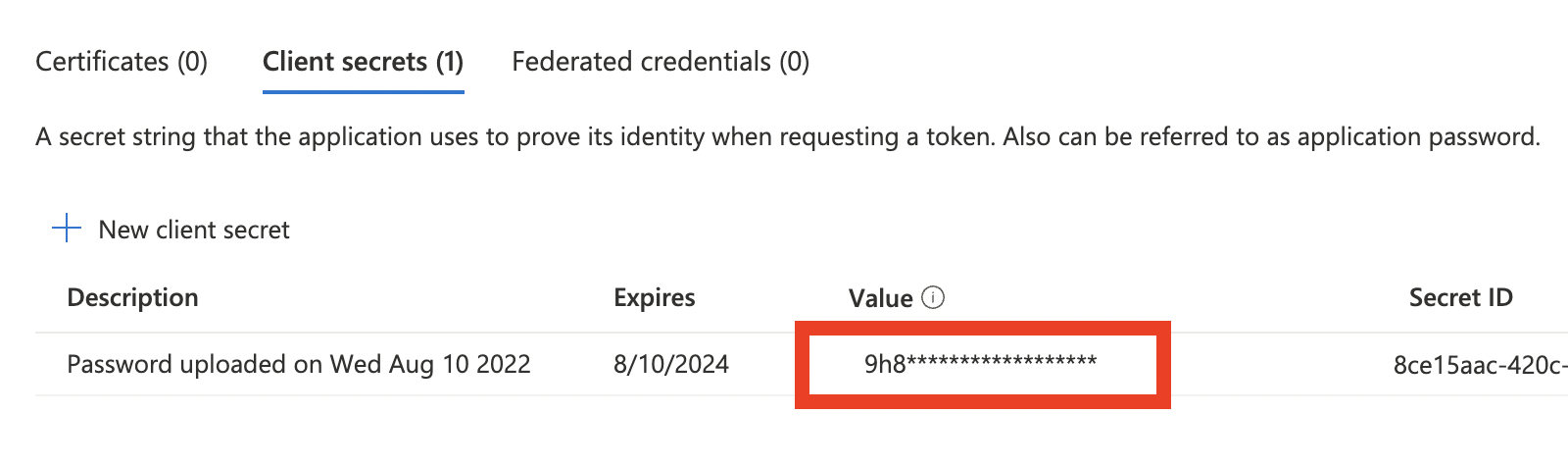
Copy the client secret
- Go to .
- Click New client secret.
- Enter a description and select 24 months as the expiration.
- Click Add.
- Copy the Value that appears and store it somewhere securely.
CAUTION:
This value isn't displayed again and isn't retrievable by any other means. It's referred to as the client secret going forward.
Select app permissions
-
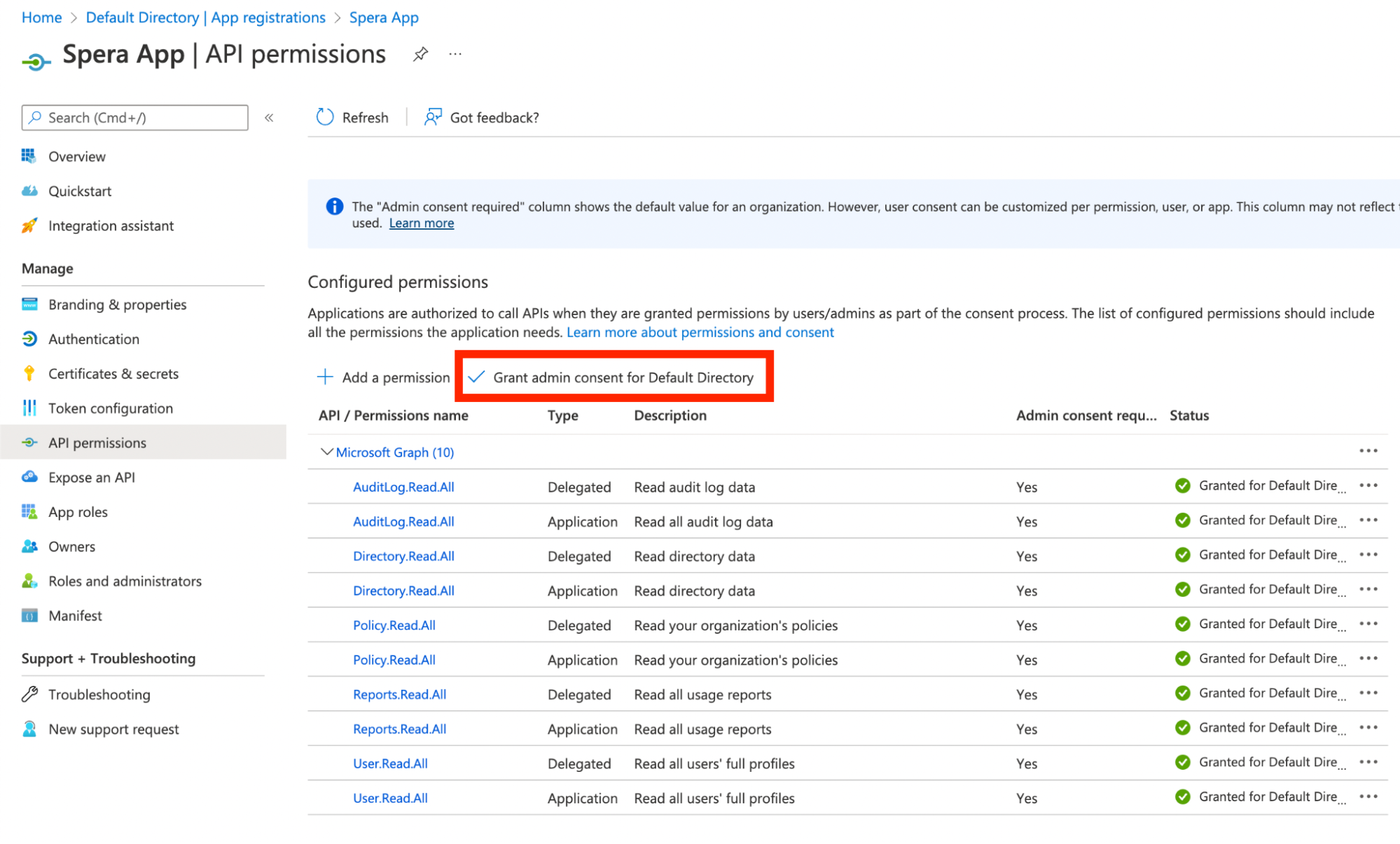
Go to API permissions.
-
Click + Add a permission and select Microsoft Graph.
-
Select Application permissions as the permission type.
-
In the Application permissions section, select the following permissions:
-
AuditLog.Read.All
-
Directory.Read.All
-
IdentityProvider.Read.All
-
MailboxSettings.Read
-
Policy.Read.All
-
Reports.Read.All
-
RoleManagement.Read.All
-
User.Read.All
-
UserAuthenticationMethod.Read.All
-
Domain.Read.All
-
-
Click Add permissions.
-
On the API permissions page, click Grant admin consent for {tenant}.
-
Click Yes to grant consent for the requested permissions for all users in the tenant.
-
In the Identity Security Posture Management console, go to .
- Select Microsoft Entra ID .
- Enter the following parameters:
- Tenant name - tenant primary domain
- Application (client) ID
- Client secret
- Click Submit.
Related topic