Skip to main contentSkip to docs navigation
Docs
  • English (United States)
  • 日本語 (日本)
  • Français (France)
    • Identity Engine
    • Classic Engine
    • Access Gateway
    • Advanced Server Access
    • Aerial
    • Identity Security Posture Management
    • Workflows
    • Identity Engine
    • Classic Engine
    • Access Gateway
    • Advanced Server Access
    • Aerial
    • Identity Security Posture Management
    • Workflows
  • Okta Developer
    • Auth0 Docs
    • Auth0 FGA Docs
  • Training
  • Support
    • English (United States)
    • 日本語 (日本)
    • Français (France)

Feedback

OAG publication
  1. Manage Access Gateway day-to-day
  2. Manage logging
  3. Examine disk in use

Examine disk in use

To set the Access Gateway logging level:

  1. Navigate to your Access Gateway instance.
  2. Select the Logs tab.
  3. Select the Log Storage pane.
  4. Examine disk usage which should resemble:
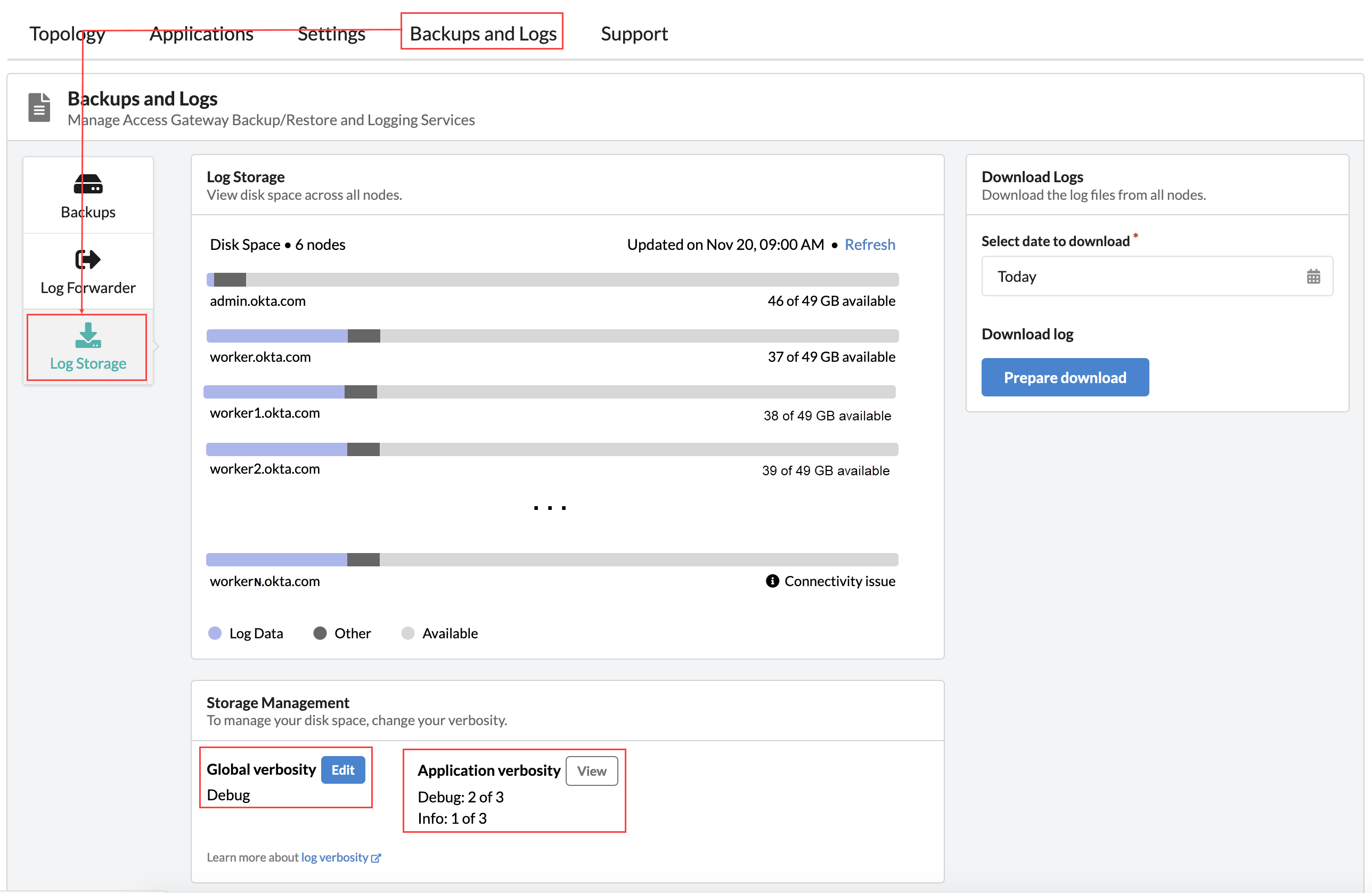
Application verbosity

Application verbosity displays the number of applications in either debug and info mode. Clicking View opens Application view.

Related topics

  • About Access Gateway logging
  • About logging levels
  • About logging storage

© Okta, Inc. All Rights Reserved. Various trademarks held by their respective owners.

Top