Configure Fortinet Appliance
Configure a Fortinet appliance to use the Okta RADIUS Server agent.
Before you begin
Meet the following network connectivity requirements before you install the Okta RADIUS agent:
| Source | Destination | Port/Protocol | Description |
|---|---|---|---|
| Okta RADIUS Agent | Okta Identity Cloud | TCP/443 HTTP |
Configuration and authentication traffic. |
| Client Gateway | Okta RADIUS Agent | UDP/1812 RADIUS (Default, you can change this when you install and configure the RADIUS app) | RADIUS traffic between the gateway (client) and the RADIUS agent (server). |
Limitations
Enroll only a single Okta Verify device. Adding more Okta Verify devices can cause undefined or unexpected behavior.
If you've migrated a RADIUS-configured org from Classic Engine and you configure the Okta Verify authenticator with the number challenge, the challenge may be presented to RADIUS users even though it's not supported. To prevent this, enable the Early Access feature Disable number matching challenge for RADIUS. See Manage Early Access and Beta features.
Supported factors
The size of the challenge message can be too large for the RADIUS prompt if you let users enroll too many authenticators. Okta recommends that you enroll no more than eight authenticators at a given time.
Okta supports the following authenticators for RADIUS apps:
|
MFA Authenticator |
Password Authentication Protocol (PAP) | Extensible Authentication Protocol - Generic Token Card (EAP-GTC) | Extensible Authentication Protocol - Tunneled Transport Layer Security (EAP-TTLS)* |
|---|---|---|---|
| Duo (Push, SMS, and Passcode only) | Supported | Supported | Duo passcode only. |
|
Supported |
Supported |
Supported when the string EMAIL is initially sent. Refer to associated note. |
|
|
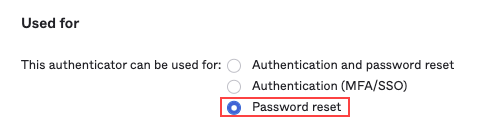
RADIUS doesn't support inline enrollment with Email. When using inline enrollment, either disable Email or specify Password reset in Email settings.
|
|||
| Supported | Supported | Supported, as long as the challenge is avoided. For example, MFA only or password and passcode. | |
| Supported (for one device only) |
Supported (for one device only) |
Supported, as long as the challenge is avoided. (for one device only) For example: MFA-only or "Password, MFA" for TOTP. Push can work with primary authentication with MFA as the push challenge is sent out-of-band. |
|
|
Not supported |
Not supported |
Not supported |
|
| Supported (Password and MFA only) | Supported (Password + MFA only). | Not supported | |
| Supported | Supported | Supported when the string "CALL" is sent. Refer to associated note. | |
| Supported | Supported | Supported, as long as the challenge is avoided. For example, MFA only or password and passcode. | |
* RADIUS supports three authentication methods:
- Password + MFA: Primary authentication using a password, then the user is prompted to select factors to complete the authentication.
- MFA only: Instead of a password, users enter either a one-time passcode (OTP), or one of
EMAIL,SMS,CALL,PUSH(case insensitive). - Password and passcode: Password entered immediately followed by a passcode in a request. It must be in the same request, for example:
Abcd1234,879890" or "Abcd1234,SmS".
Protocols support the following authentication methods:
| Protocol | Supports |
|---|---|
| PAP | Password and MFA, MFA only, password and passcode. |
| EAP-TTLS | MFA only, password and passcode. |
| EAP-GTC | Password and MFA, MFA only, password and passcode. |
Users must send the specified string EMAIL/SMS/CALL, which initially returns a failure. This results in the generation of an OTP provided using the specified method. The provided OTP can then be used for authentication.
EAP-TTLS doesn't support enrollment.
Authentication fails when EAP-TTLS is enabled, either Okta Verify or phone is specified in the enrollment policy, and the user isn't enrolled in that authenticator.
U2F Security and Windows Hello aren't compatible with RADIUS-enabled implementations. See RADIUS applications in Okta.
Passwordless authentication
RADIUS authentication uses passwords as the primary authentication mechanism. Traditional RADIUS authentication can't be performed with passwordless users. RADIUS can use other factors for authentication when the application setting property Okta performs primary authentication is cleared. See 2FA Only (Passwordless Mode) in RADIUS applications in Okta for addition detail.
For more information on passwordless authentication see Set up passwordless sign-in experience.
Typical workflow
|
Task |
Description |
|---|---|
| Download the RADIUS agent |
In the Admin Console, go to . Download the appropriate Okta RADIUS Agent for your environment.For throughput, availability and other considerations, see Okta RADIUS Server Agent Deployment Best Practices. |
| Install the Okta RADIUS Agent. | Install Okta RADIUS Server agent on Windows |
| Configure application | Configure the Fortinet Fortigate (RADIUS) application. |
| Configure gateway | Use the Fortinet configuration tool to configure the Fortinet gateway. |
| Configure optional settings | Optional. Configure optional settings (for example, vendor-specific attributes). |
| Test | Test the newly integrated agent. |